Last Updated on 10 Nov. 2016: Screenshots and article updated to match the latest Blogger.com website settings
If you have a blog hosted for free on Blogger and are planning to give it a professional look by changing the url from example.blogspot.com to example.com, then look no further. You are reading the best and easiest tutorial for it.
For this tutorial you need to have these two things:
This blog BloggerStop.net is also a custom domain registered at 1and1.com.
So I would recommend you to purchase a domain from 1and1, which is a highly trusted website and listed on Bloggers' suggested registrars too.
Once you purchase a domain from 1and1, it will be registered in about 2 days.
Log in to Blogger and go to Settings -> Basic. Now, Under Publishing section, change the "Blog Address".
You can see the current blog url as "YourBlog.blogbpot.com"
And let's say you want to change it to "www.example.com".
(NOTE: In blogger, you cannot directly use a naked domain name such as example.com without a sub-domain like "www" or "blog". But once you setup a sub domain as your blog address, then of course you can forward your naked domain to your sub domain. Just keep reading this article.)
So, click on "+ Setup a 3rd party URL for your blog".

Step #2
Now enter your custom domain name "www.example.com" or "blog.example.com" and hit on "Save".
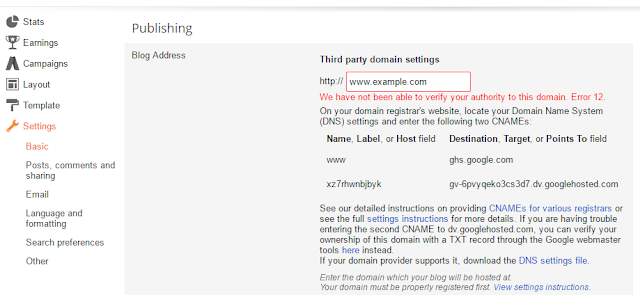
Once you hit "Save", you will see a message like the one in above screenshot.
It does display an error which says: "We have not been able to verify your authority to this domain. Error 12."
Simply ignore the error message, but note down the two label or host names along with their target destinations in a notepad.
Step #3
The two labels, you got from Step #2 are going to be your two new sub domains. Simply head over to your domain registrar (1and1, GoDaddy or Name.com etc.) and create the sub-domains.
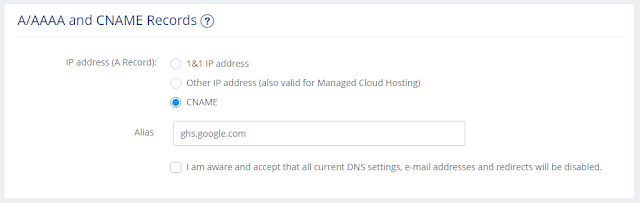
Next screenshot is specific to 1and1 (for others, you need to go to your Domain Registrar, create the sub-domains and simply change their DNS settings just like shown below):

Step #4
Sub-domain (at 1and1 or your domain registrar) is the "Name/Label/Host" (as Google/Blogger calls it)
And the value from "Destination/Target/Points To" from Blogger should be pasted in the Alias Field at 1and1 Domain DNS settings - as shown below
Step #5
Repeat Step #4 for the other sub-domain given (generated) by Blogger in Step #2.
That's it!
Once you have created the two sub-domains and changed their destination at your domain registrar - just wait for a few hours (maximum 48 hours) to get these changes processed. And as soon as the changes are processed, you can access your blog with your new custom domain name.
If you are planning to use your domain itself as your blog, then you need to point your naked domain example.com to your sub domain i.e. www.example.com [read the complete article - on how to use a naked domain with Blogger]
And in case, you already have a custom domain name and are planning to change it to a new custom domain without affecting the SEO and link authority of your old domain, then just wait for an upcoming article on BloggerStop.
If you have a blog hosted for free on Blogger and are planning to give it a professional look by changing the url from example.blogspot.com to example.com, then look no further. You are reading the best and easiest tutorial for it.
For this tutorial you need to have these two things:
- A professional domain name
- A free account at Blogger.com
What's A Professional Domain Name
Any name followed by top-level-domains (TLDs) like .com .net .us .in etc. are professional domain names.This blog BloggerStop.net is also a custom domain registered at 1and1.com.
So I would recommend you to purchase a domain from 1and1, which is a highly trusted website and listed on Bloggers' suggested registrars too.
Once you purchase a domain from 1and1, it will be registered in about 2 days.
Free Blogger Account
Yup, it's completely free. If you don't want to spend money on web hosting, then Blogger is the perfect solution for you. It has it's own advantages and disadvantages. But for this tutorial I am not going into the details and I am assuming that you already have a Blogger account. If not, then you can open Blogger.com account within 10 minutes.Setting Up The Custom Domain at Blogger
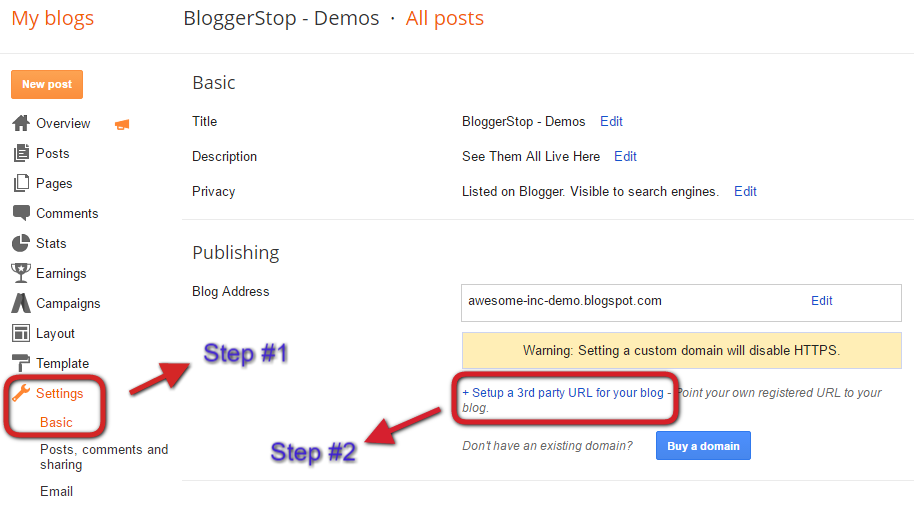
Step #1Log in to Blogger and go to Settings -> Basic. Now, Under Publishing section, change the "Blog Address".
You can see the current blog url as "YourBlog.blogbpot.com"
And let's say you want to change it to "www.example.com".
(NOTE: In blogger, you cannot directly use a naked domain name such as example.com without a sub-domain like "www" or "blog". But once you setup a sub domain as your blog address, then of course you can forward your naked domain to your sub domain. Just keep reading this article.)
So, click on "+ Setup a 3rd party URL for your blog".
Step #2
Now enter your custom domain name "www.example.com" or "blog.example.com" and hit on "Save".

Once you hit "Save", you will see a message like the one in above screenshot.
It does display an error which says: "We have not been able to verify your authority to this domain. Error 12."
Simply ignore the error message, but note down the two label or host names along with their target destinations in a notepad.
Step #3
The two labels, you got from Step #2 are going to be your two new sub domains. Simply head over to your domain registrar (1and1, GoDaddy or Name.com etc.) and create the sub-domains.
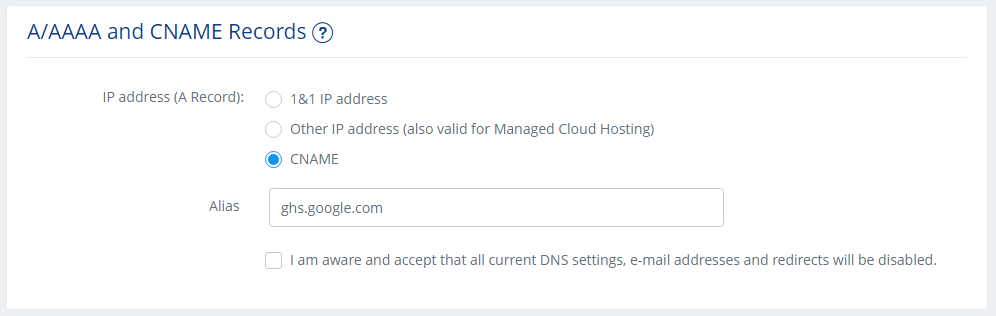
Next screenshot is specific to 1and1 (for others, you need to go to your Domain Registrar, create the sub-domains and simply change their DNS settings just like shown below):

Step #4
Sub-domain (at 1and1 or your domain registrar) is the "Name/Label/Host" (as Google/Blogger calls it)
And the value from "Destination/Target/Points To" from Blogger should be pasted in the Alias Field at 1and1 Domain DNS settings - as shown below
Step #5
Repeat Step #4 for the other sub-domain given (generated) by Blogger in Step #2.
That's it!
Once you have created the two sub-domains and changed their destination at your domain registrar - just wait for a few hours (maximum 48 hours) to get these changes processed. And as soon as the changes are processed, you can access your blog with your new custom domain name.
If you are planning to use your domain itself as your blog, then you need to point your naked domain example.com to your sub domain i.e. www.example.com [read the complete article - on how to use a naked domain with Blogger]
And in case, you already have a custom domain name and are planning to change it to a new custom domain without affecting the SEO and link authority of your old domain, then just wait for an upcoming article on BloggerStop.

